First post!
Oh, right, this isn’t Slashdot…
Anywho, here goes:
While at a customer, a few colleagues and I were joking about Use Case diagrams, which in their most basic form tend to be somewhat meaningless. However, in more complex requirements definitions, they certainly can help define actors and sections of functionality to go into certain releases, for instance.
As I at the time was pondering how to best visualize the customer’s SOA architecture and service dependencies by generating Graphviz diagrams, I thought - hey, why not use Graphviz to quickly produce some snazzy Use Case Diagrams?
Well… the snazziness is debatable, and I didn’t manage it as quickly as I had hoped. But all considered, I think they turned out quite well.
To begin with, I have to figure out how to render a stick figure for a node. When using the postscript output, you can create custom shapes, but since I want to create just a PNG image, I need to use an image as the custom shape file.
With Inkscape I managed to produce the following:
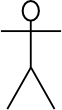
Very nice.
Saving this as stick.png, we can create a simple diagram:
1.dot
digraph G {
    "User" [shapefile="stick.png"];
    "Log In" [shape=ellipse];
    "User"->"Log In" [arrowhead=none]
}
This can be run through the Graphviz dot program thus:
cat 1.dot | dot -Tpng > 1.pngWhich produces:
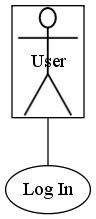
Hmmm… Not quite what we wanted. Let’s make a few changes:
- Make the graph left-right.
- Get rid of the box.
- Move the actor label to below the stick figure.
The most difficult of this is moving the label. This seems to require creating a cluster subgraph containing a label and the node with the custom shape. An example of this can be seen in this Graphviz tutorial. Another alternative is using HTML in the label - but this looks ugly. So, doing this, and refactoring a bit to create nodes explicitly, we get:
2.dot
digraph G {
   rankdir=LR;

    subgraph clusterUser {label="User"; labelloc="b"; peripheries=0; user};
    user [shapefile="stick.png", peripheries=0, style=invis];

    login [label="Log In", shape=ellipse];

    user->login [arrowhead=none];
}
… which gives us:
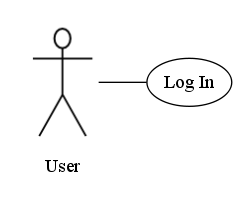
Not too bad. Let’s add some more use cases:
3.dot
digraph G {
    rankdir=LR;
    labelloc="b";
    peripheries=0;

    /* Actor Nodes */

    node [shape=plaintext, style=invis];

    subgraph clusterUser {label="User"; user};
    user [shapefile="stick.png"];

    subgraph clusterAdmin {label="Administrator"; admin};
    admin [shapefile="stick.png"];


    /* Use Case Nodes */

    node [shape=ellipse, style=solid];

    log_in [label="Log In"];

    log_in_pwd [label="Log In Password"];
    log_in_cert [label="Log In Certificate"];

    manage_user [label="Manage User"];
    change_email [label="Change Email"];
    change_pwd [label="Change Password"];


    /* Edges */

    edge  [arrowhead="oarrow"];

    admin->user;

    edge [arrowhead=none];

    user->log_in;
    admin->manage_user;

    edge [arrowtail="vee", label="<<extend>>", style=dashed];

    log_in->manage_user;
    log_in->log_in_pwd;
    log_in->log_in_cert;

    manage_user->change_email;
    manage_user->change_pwd;
}
Run through dot this produces the following image:
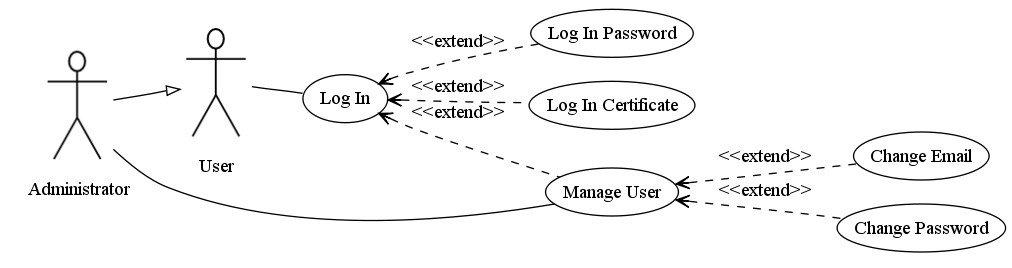
The obvious problem with this is that the nodes aren’t placed were we really want them to be. Automatic node placement in a directed graph is one the strong points of dot, but the default placement doesn’t really correspond to how we want our Use Case to look. So, let’s add some hints to help dot place the nodes in the way we like it:
4.dot
digraph G {
    rankdir=LR;
    labelloc="b";
    peripheries=0;

    /* Actor Nodes */

    node [shape=plaintext, style=invis];

    subgraph clusterUser {label="User"; user};
    subgraph clusterAdmin {label="Administrator"; admin};

    {
        rank=min;

        user [shapefile="stick.png"];
        admin [shapefile="stick.png"];
    }


    /* Use Case Nodes */

    node [shape=ellipse, style=solid];

    {
        rank=same;

        log_in [label="Log In"];
        manage_user [label="Manage User"];
    }

    log_in_pwd [label="Log In Password"];
    log_in_cert [label="Log In Certificate"];

    change_email [label="Change Email"];
    change_pwd [label="Change Password"];


    /* Edges */

    edge  [arrowhead="oarrow"];

    admin->user;

    edge [arrowhead=none];

    user->log_in;
    admin->manage_user;

    edge [arrowtail="vee", label="<<extend>>", style=dashed];

    log_in->manage_user;
    log_in->log_in_pwd;
    log_in->log_in_cert;

    manage_user->change_email;
    manage_user->change_pwd;
}
Which produces:
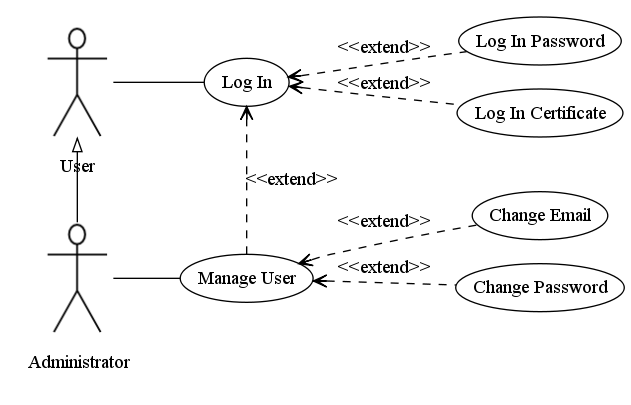 Sweet!
Now, I don’t see most people working with requirements modeling getting too excited by this. The ones I’ve worked with tend to prefer graphical tools. But Graphviz is an excellent option when one wants to visualize data sets by automatically generating diagrams - and the more that can be done automatically, the better!
/M